Box Elder County Emergency Management: Faith Based/Community Rapid Damage Assessment and Reporting (RDAR) Survey123 Instructions
Updated 4/25/2023
Here are the instructions for downloading the Rapid Damage Assessment Reporting app.
This is not intended to eliminate the RDAP clipboard process. That process should be done every time because it gathers more info. This app is a quick simple process which reports info directly to the jurisdictions and eases the burden of gathering statistics and reporting. We can assist with its implementation, as needed. R. Mark Millett, Emergency Manager Box Elder County
- Download and install ArcGIS Survey 123 app
App is available for download from the App Store (Apple) and Google Play Store (Android)
Search for Survey123 and look for the icon to verify you have the correct app. Download the app.

Minimum OS requirements: Apple: iOS 13 or later Android: 6.0 or late
- Scan the RDAR QR Code
The QR code will only
work if you have the Survey123 App downloaded

- The Survey123 app will open when the QR code is scanned.
If the app asks for permission to use the camera on the phone. Select allow.
Select “Continue without signing in”
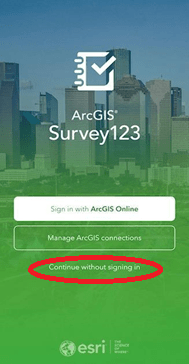
If the app asks for permission to use location services. Select allow while using the app.
How to Access Survey
Once the survey has been loaded it can be found in the My Survey 123 menu for future use.
If it is the only survey available in the app, select collect data at the bottom of the screen and enter the information. If it is not the only survey available, select the RDAR survey and tap collect at the bottom of the screen to begin.
If the app asks you to update to a newer version of the survey please update (at the top of the screen or in a pop-up).
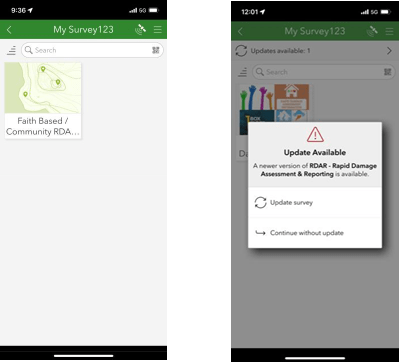
- Select Updates available to download current version.
Select Update survey to download→ current version
- Incident reporting
The Survey123 app will open for incident reporting. There are 7 items on the survey that need input.
- Location*
- Weather Conditions*
- Disaster Type*
- If you select other please describe
- Damage Type*
- If you select other please describe
- Number of Injured*
- Photos (up to 5 can be submitted)
- Additional Comments
- Contact Information*
*Required Fields
When everything has been input, click on the check mark at the bottom of the screen to submit. To abort the entry click the “X” in the top right corner and select the option for the appropriate action. (Save in drafts, continue this survey, or close and lose changes.)
 Self-Reliance